Software warnings feel harmless until the day one of them turns into a late-night outage.
In this article, we’ll walk through turning those yellow squiggles into early-failing, production-saving errors using the WarningsAsErrors family of settings.
You’ll see exactly how to flip the switch, when to fine-tune it, and what to do if your project is already drowning in warnings.
Why a Single Warning Can Sink a Release
A typical C# solution compiles even when dozens of diagnostics flash by because the default severity for most compiler diagnostics and analyzer rules is warning. Teams get used to the noise, and real defects hide in plain sight:
-
Nullability warnings such as
CS8602that later crash the app. -
Unobserved task exceptions masked by ignored async warnings.
-
API misuse caught by analyzers but never fixed.
Put bluntly, a warning is a bug you’ve scheduled for production.
Code Example
public static class Program
{
    static void Main(string[] args)
    {
        // CS0168: Variable declared but never used
        int unusedVariable;

        // CS8600: Converting null literal or possible
        // null value to non-nullable type
        string nullableStr = GetNullableString();

        // CS8602: Dereference of a possibly null reference
        Console.WriteLine($"Length: {nullableStr.Length}");
    }

    // Method that can return null
    private static string? GetNullableString()
    {
        return DateTime.Now.Second % 2 == 0 ? "Test string" : null;
    }
}
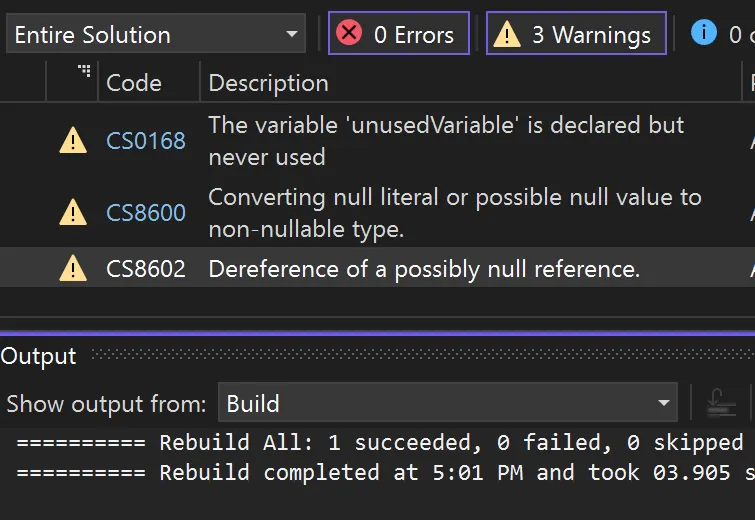
The Error List reports CS0168, CS8600, and CS8602, yet the build still finishes successfully with zero errors and three warnings.
TreatWarningsAsErrors
Adding one line to your .csproj turns every compiler warning into an error:
<Project Sdk="Microsoft.NET.Sdk">
  <PropertyGroup>
    <OutputType>Exe</OutputType>
    <TargetFramework>net8.0</TargetFramework>
    <ImplicitUsings>enable</ImplicitUsings>
    <Nullable>enable</Nullable>
    <TreatWarningsAsErrors>true</TreatWarningsAsErrors>
  </PropertyGroup>
</Project>
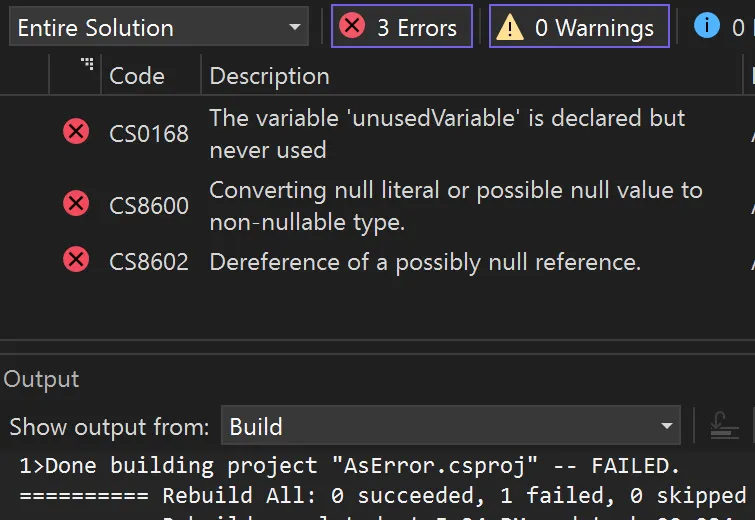
From now on, the build fails fast.
Pros
-
Zero chance of shipping fresh compiler warnings.
-
A clear signal for every developer.
Cons
- It can be brutal when a legacy codebase already has hundreds of diagnostics.
WarningsAsErrors
If you need more control, list only the warning codes that should be treated as errors:
<Project Sdk="Microsoft.NET.Sdk">
  <PropertyGroup>
    <OutputType>Exe</OutputType>
    <TargetFramework>net8.0</TargetFramework>
    <ImplicitUsings>enable</ImplicitUsings>
    <Nullable>enable</Nullable>
    <WarningsAsErrors>CS8600</WarningsAsErrors>
  </PropertyGroup>
</Project>
All other warnings remain warnings and won’t break the build. To include multiple warning codes, separate them with semicolons:
<WarningsAsErrors>CS8600;CS8602</WarningsAsErrors>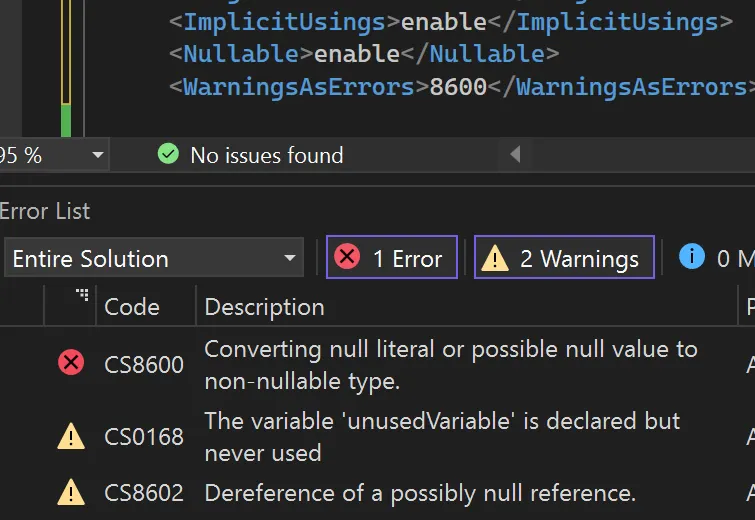
WarningsNotAsErrors
Sometimes you want the inverse: keep most warnings as errors except for a few noisy ones.
<Project Sdk="Microsoft.NET.Sdk">
  <PropertyGroup>
    <OutputType>Exe</OutputType>
    <TargetFramework>net8.0</TargetFramework>
    <ImplicitUsings>enable</ImplicitUsings>
    <Nullable>enable</Nullable>
    <TreatWarningsAsErrors>true</TreatWarningsAsErrors>
    <WarningsNotAsErrors>CS0168</WarningsNotAsErrors>
  </PropertyGroup>
</Project>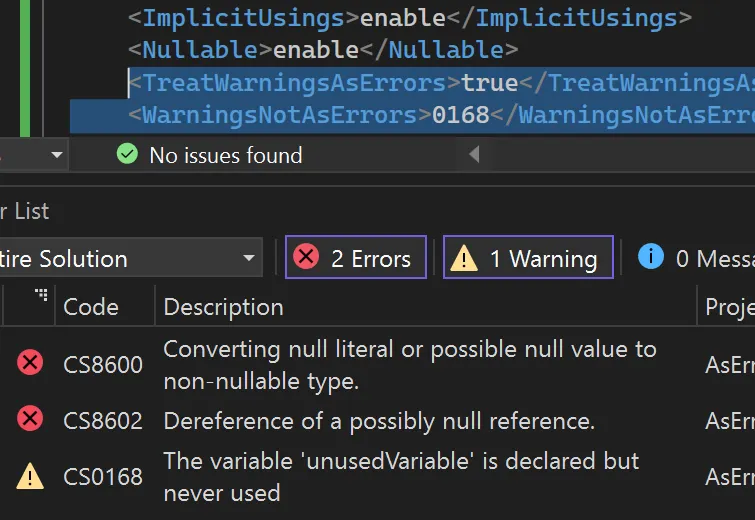
If you already have hundreds of warnings, this approach might not be enough. In one of the next posts, I’ll share tactics for cleaning them up quickly.
Key Takeaways
-
A warning ignored today can become tomorrow’s post-mortem.
-
TreatWarningsAsErrorsis the simplest and most reliable safety net. -
Selective lists with
WarningsAsErrorsandWarningsNotAsErrorslet you adopt the rule gradually. -
Automate compiler switches, analyzers, and formatting to keep the signal clean.
Lock warnings down now, and let your production environment sleep easier later.